From the archive
HoloLens Tutorial - Object Surface Observer
Last Updated: Apr 22, 2017
Tutorial Accomplishments- Save Spatial Map for Use In Unity
- Object Surface Observer Setup
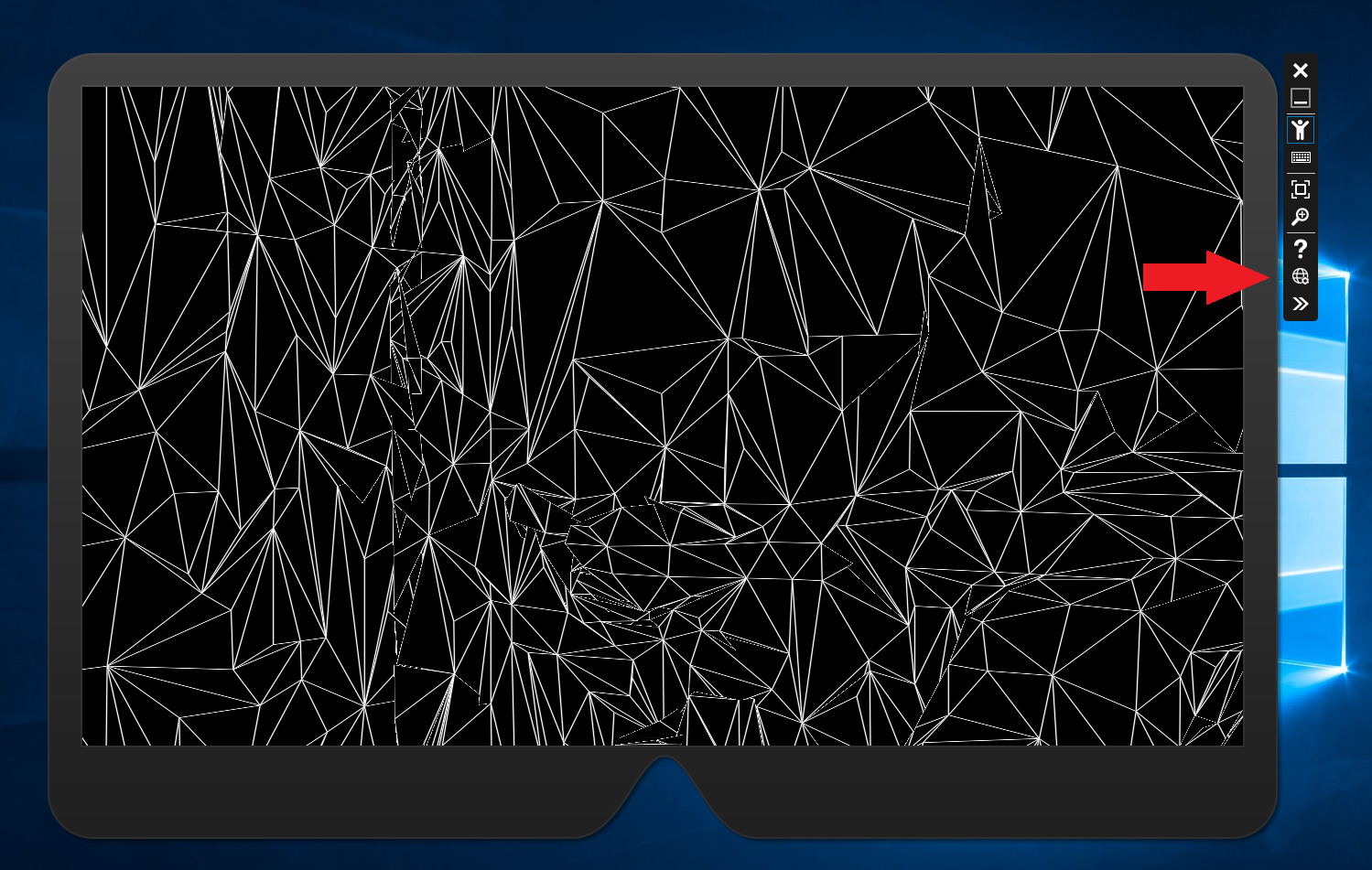 Click 3D View on the menu on the left side of the portal. Click the Update Button under Spatial Mapping. You should see a flat textured view of the room you are looking at in the emulator.
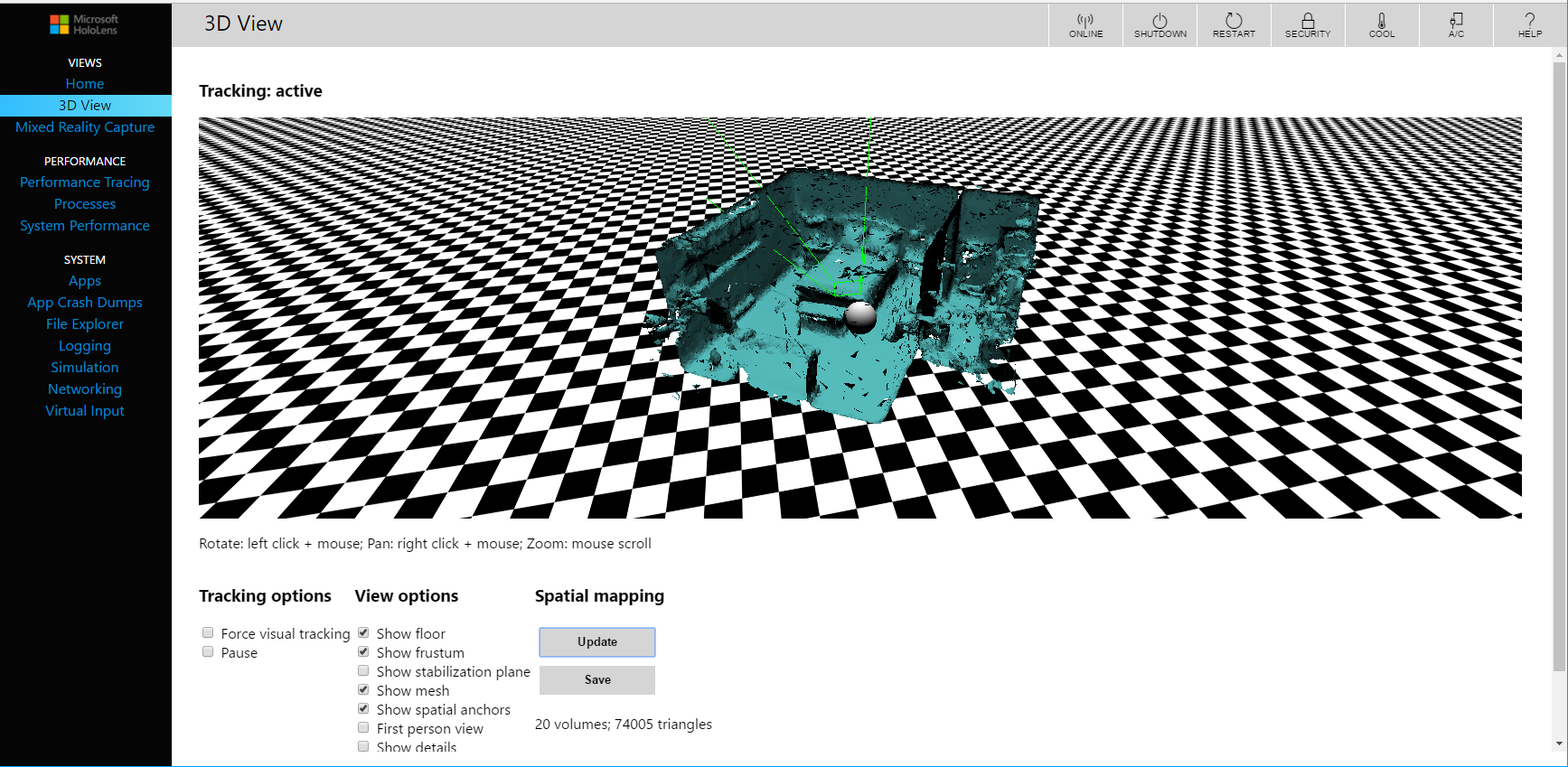 Click the Save button under Spatial Mapping, downloading a file called SpatialMapping.obj.
Object Surface Observer Setup
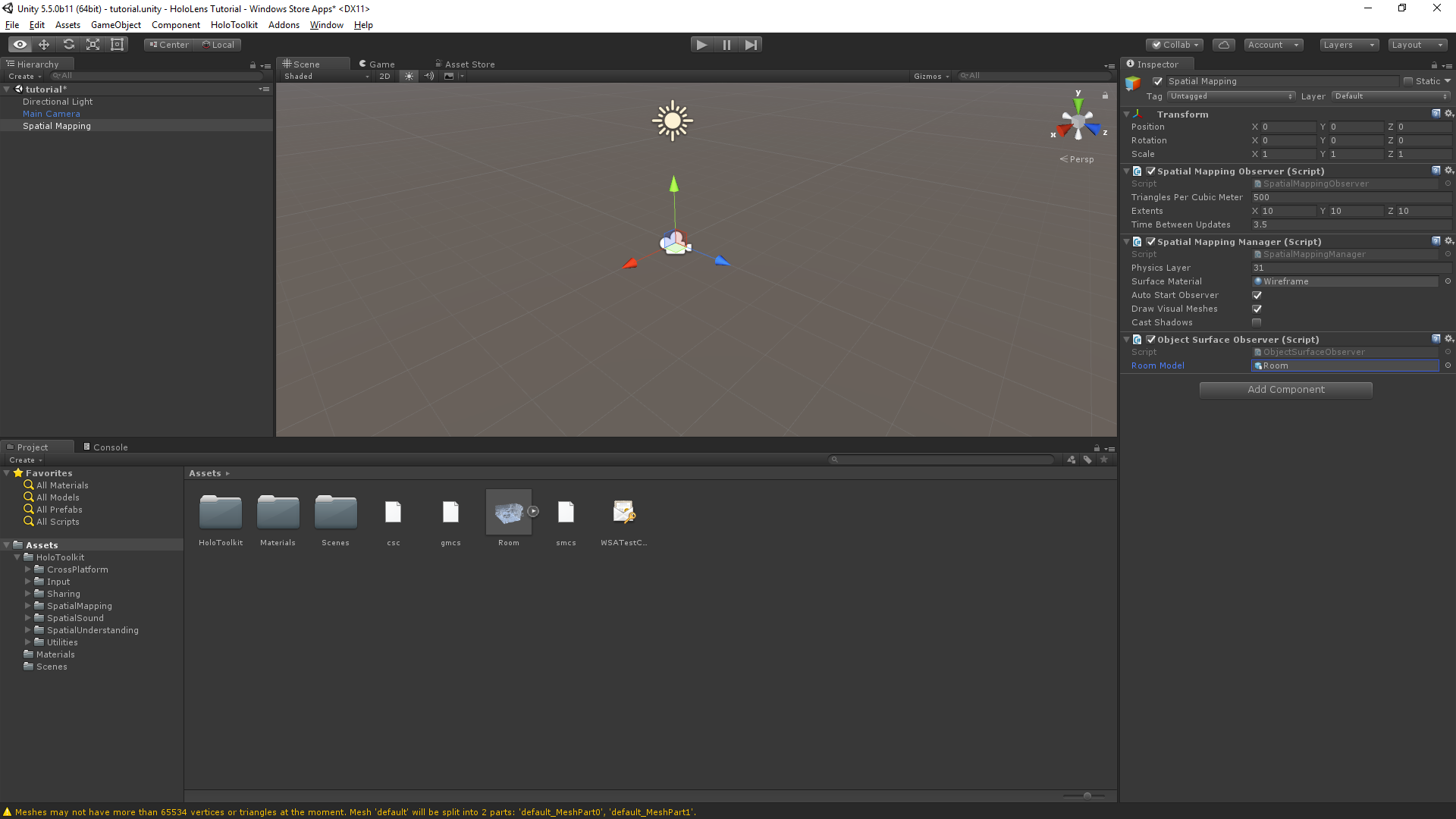
Move this file to the Assets folder of your Unity Project and rename it to "Room.obj". Open the project in Unity 3D and you should now see the SpatialMapping mesh as an Asset. Select the Spatial Mapping node in the Hierarchy. Click Add Component and Add "Object Surface Observer" from the HoloToolkit. This component takes a Room Model and renders it as a Spatial Map that the Spatial Mapping Observer will use when running from Unity. Set the Room Model to "Room.obj". Your project should now look like this:
Click the Save button under Spatial Mapping, downloading a file called SpatialMapping.obj.
Object Surface Observer Setup
Move this file to the Assets folder of your Unity Project and rename it to "Room.obj". Open the project in Unity 3D and you should now see the SpatialMapping mesh as an Asset. Select the Spatial Mapping node in the Hierarchy. Click Add Component and Add "Object Surface Observer" from the HoloToolkit. This component takes a Room Model and renders it as a Spatial Map that the Spatial Mapping Observer will use when running from Unity. Set the Room Model to "Room.obj". Your project should now look like this:
 Click Play in Unity. Click the Scene tab and you should now see your room rendered as a spatial map. The ability to move around the room in the editor was added with the "HoloLens Camera" prefab in the Manual Gaze Control Script. Hold down the right mouse button and move the mouse cursor around until you see the mesh, use the WASD keys to move on the other axis. The project now has spatial mapping in the Unity Editor, the HoloLens Emulator, and the HoloLens!
Tutorial Index
[rps-include post=186]
Click Play in Unity. Click the Scene tab and you should now see your room rendered as a spatial map. The ability to move around the room in the editor was added with the "HoloLens Camera" prefab in the Manual Gaze Control Script. Hold down the right mouse button and move the mouse cursor around until you see the mesh, use the WASD keys to move on the other axis. The project now has spatial mapping in the Unity Editor, the HoloLens Emulator, and the HoloLens!
Tutorial Index
[rps-include post=186]Originally published November 22, 2016. Preserved from the legacy CameronVetter.com archive.