From the archive
HoloLens Tutorial – Occlusion
Last Updated: Jun 4, 2017
Tutorial Accomplishments- Add occlusion to the scene
- Fix Voice command to swap between grid and occlusion
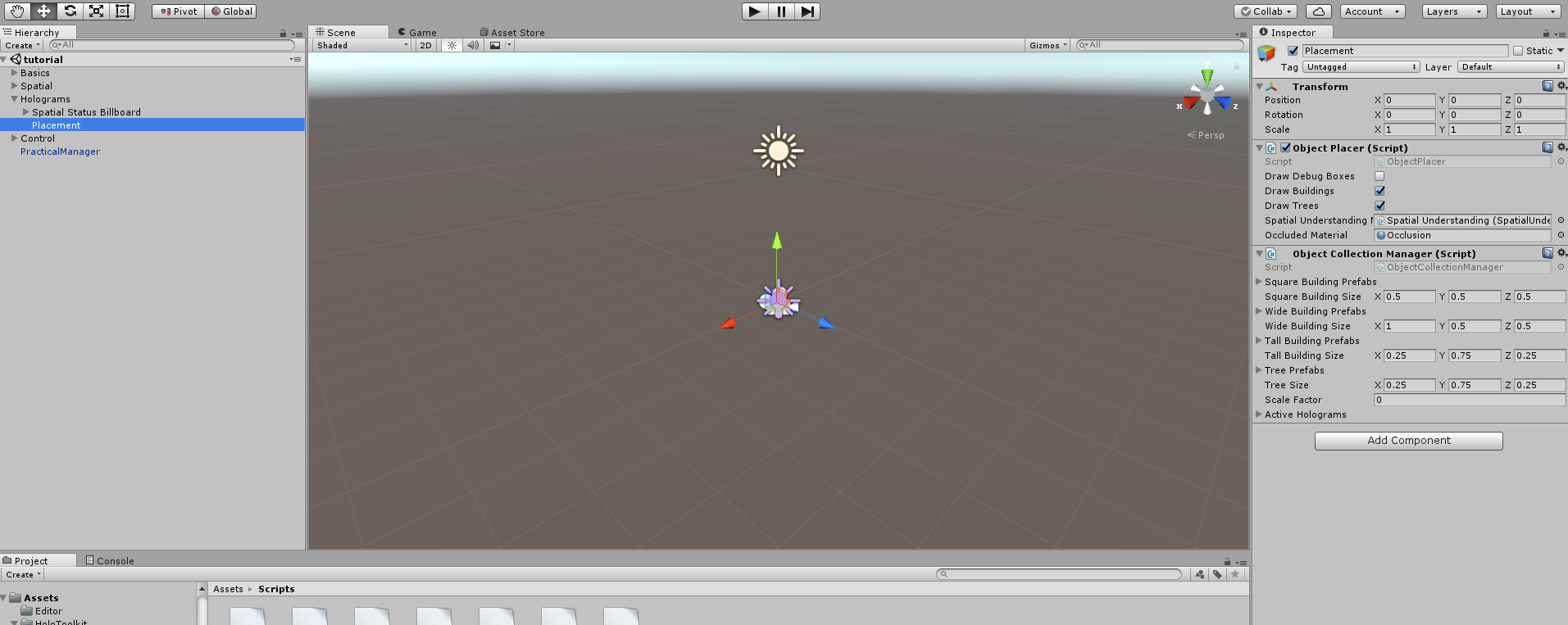 That's it! Build and Deploy the project. Notice that after spatial understanding is complete and the world is generated there is now occlusion with the real world. Stand behind a real world object that blocks your view of a hologram. Try having a hologram partially blocked. This seems like it totally solves the problem, but be warned, this level of occlusion highlights every flaw in your spatial mesh, so use this technique carefully.
Updating our Voice Command
In a previous tutorial we created a voice command that looked like this:
That's it! Build and Deploy the project. Notice that after spatial understanding is complete and the world is generated there is now occlusion with the real world. Stand behind a real world object that blocks your view of a hologram. Try having a hologram partially blocked. This seems like it totally solves the problem, but be warned, this level of occlusion highlights every flaw in your spatial mesh, so use this technique carefully.
Updating our Voice Command
In a previous tutorial we created a voice command that looked like this:
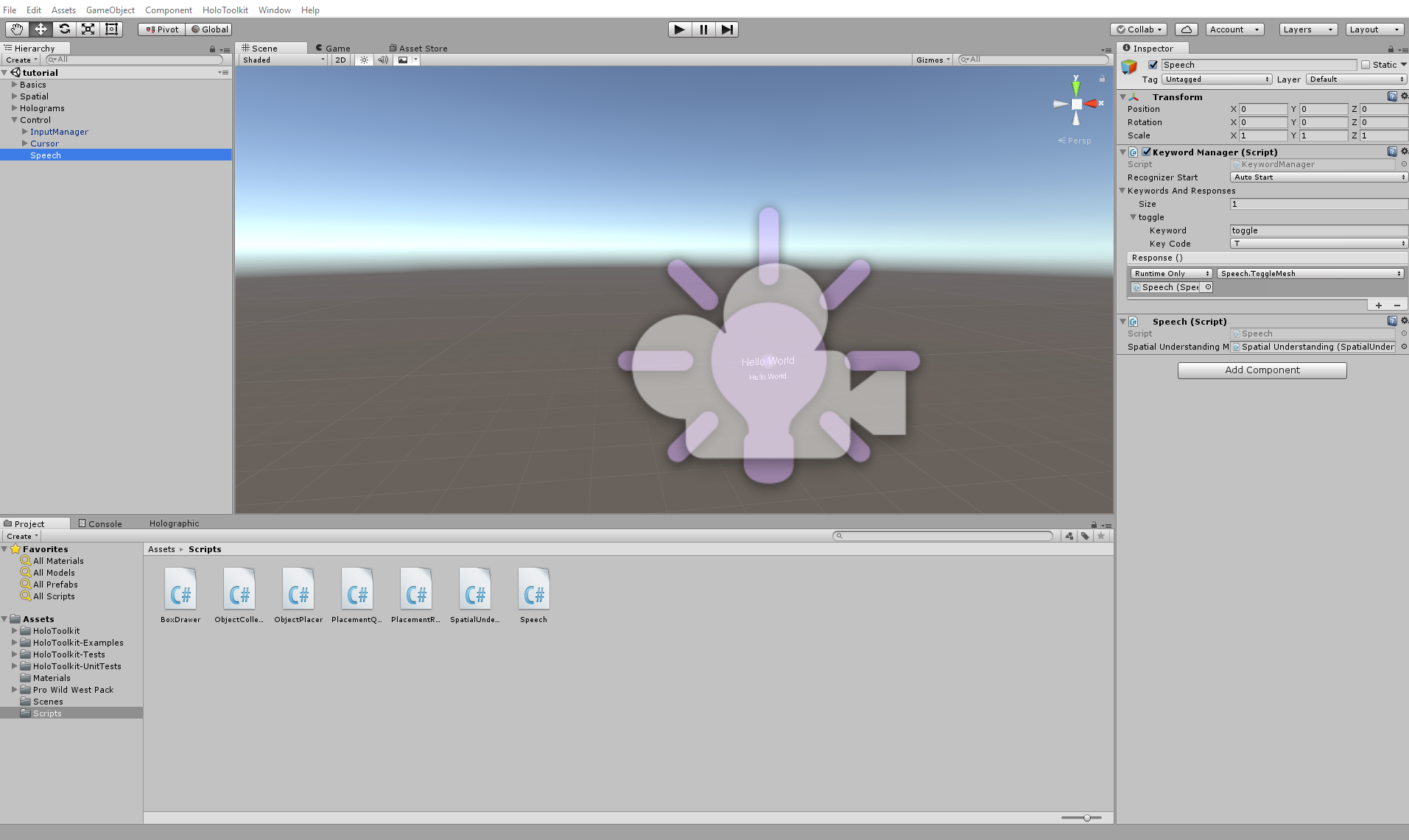 Due to the addition of occlusion this no longer works, lets correct the "Toggle" command to only work after we have finalized the spatial mesh and to swap between occlusion and the grid visualizing the spatial mesh. Edit the Speech.cs file to look like this:
https://gist.github.com/CameronVetter/ad091666bc3d5ab52285f902e68c7e07
On Start we store a copy of the Spatial Understanding Mesh Material which is the standard Spatial Understanding Grid. When the voice command for toggle is received we first make sure that spatial understanding is completed before we do anything. If it is complete we swap the currently displayed material for the material we have stored. This allows us to toggle between the occluded material and the grid.
Build and Deploy the application. You should be to speak the word "Toggle" after you have finalized the spatial mesh to switch between the grid and occlusion.
Tutorial Index
[rps-include post=186]
Due to the addition of occlusion this no longer works, lets correct the "Toggle" command to only work after we have finalized the spatial mesh and to swap between occlusion and the grid visualizing the spatial mesh. Edit the Speech.cs file to look like this:
https://gist.github.com/CameronVetter/ad091666bc3d5ab52285f902e68c7e07
On Start we store a copy of the Spatial Understanding Mesh Material which is the standard Spatial Understanding Grid. When the voice command for toggle is received we first make sure that spatial understanding is completed before we do anything. If it is complete we swap the currently displayed material for the material we have stored. This allows us to toggle between the occluded material and the grid.
Build and Deploy the application. You should be to speak the word "Toggle" after you have finalized the spatial mesh to switch between the grid and occlusion.
Tutorial Index
[rps-include post=186]Originally published June 4, 2017. Preserved from the legacy CameronVetter.com archive.