From the archive
HoloLens Tutorial - TagAlongs and Billboarding
Last Updated: Apr 22, 2017
Tutorial Accomplishments- Get the Project Better Organized
- Create a Spatial Status Billboard that TagsAlong
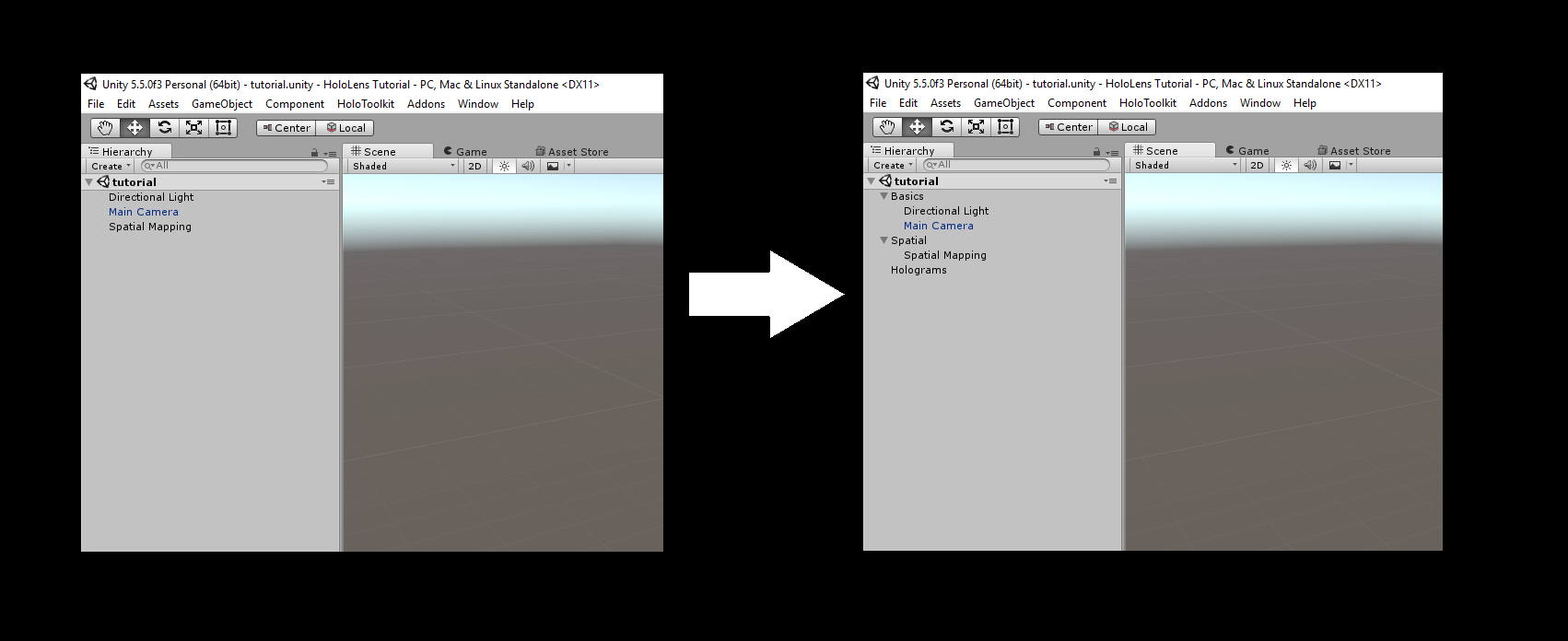 Create a Spatial Status Billboard that TagsAlong
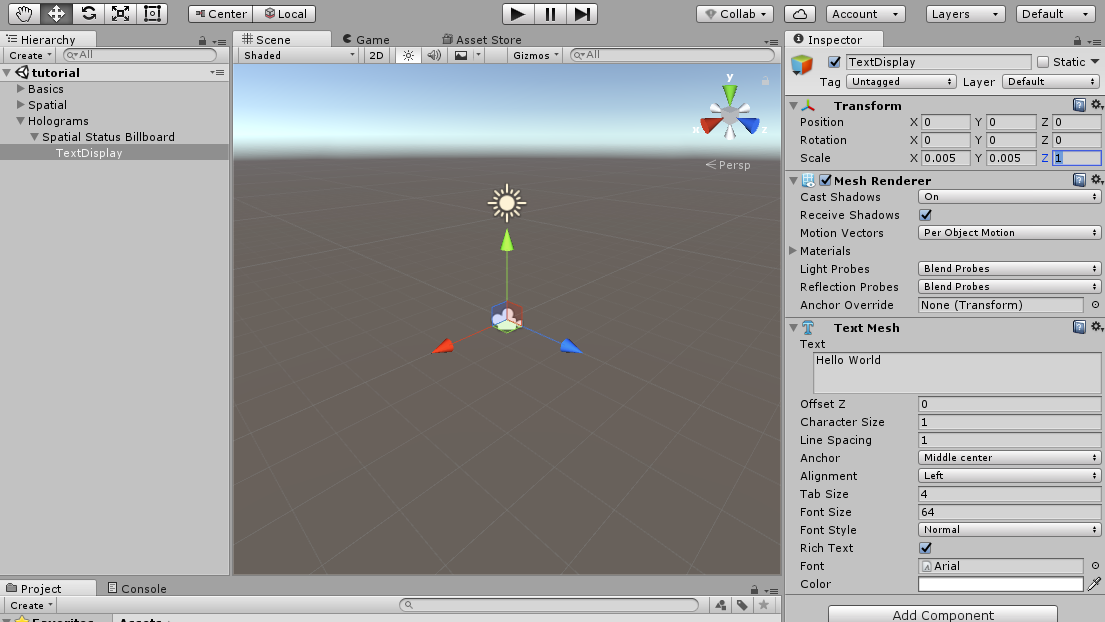
Now that our project is better organized let's create the Billboard. Under Holograms in the Hierarchy create an Empty GameObject and name it "Spatial Status Billboard". Under the Spatial Status Billboard add a new 3D Text Gameobject, this is found under 3D Objects. Rename it to TextDisplay. Set the Text Mesh and Transform properties to match the properties in the image below:
Create a Spatial Status Billboard that TagsAlong
Now that our project is better organized let's create the Billboard. Under Holograms in the Hierarchy create an Empty GameObject and name it "Spatial Status Billboard". Under the Spatial Status Billboard add a new 3D Text Gameobject, this is found under 3D Objects. Rename it to TextDisplay. Set the Text Mesh and Transform properties to match the properties in the image below:
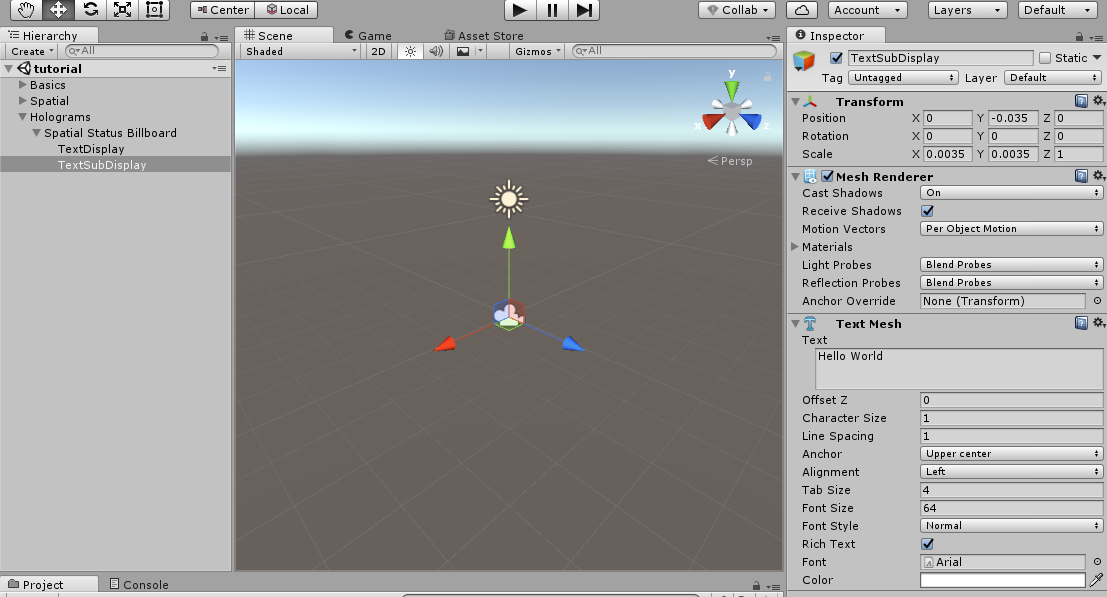
 Next create another 3D Text GameObject under Spatial Status Billboard. Rename it to TextSubDisplay. Set the Text Mesh and Transform properties to match the properties in the image below:
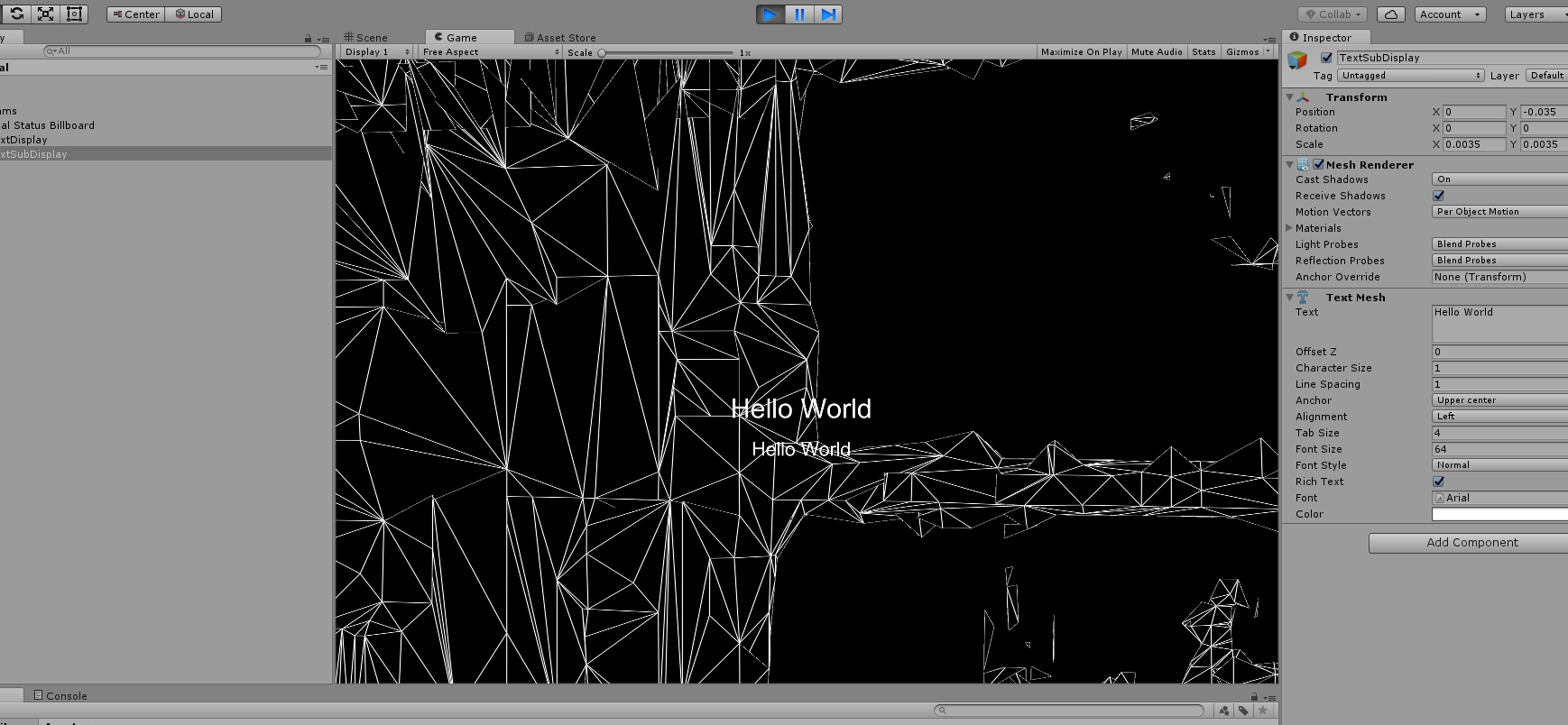
 Now Press play inside the editor. Move about a meter back and you should see the text we just added, looking something like this:
 Both of the 3D Text objects are visible but they are in a fixed position in the world. These text objects should always be visible to the user, in other words we want them to "TagAlong" with the user. Select the Spatial Status Billboard GameObject in the Hierarchy. In the Inspector click Add Component. Add the Simple Tagalong component from the HoloToolkit. Set the Tagalong distance to 1.75 (this brings the text slightly closer to the user) and the position update speed to 10, which causes the text to catch up to the user faster. Your Settings should look like this:
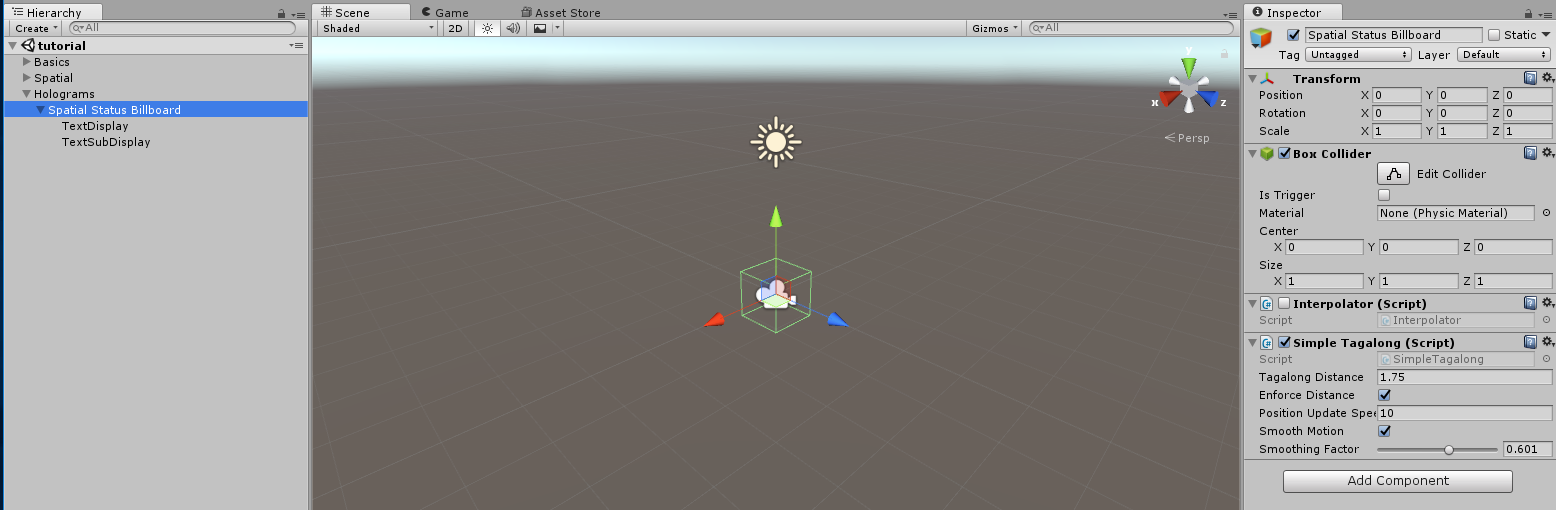 Press play. You will notice as you move around the text is trailing after you. In the editor the text typically trails a bit off screen, on the actual device with the content we will put there, the text will remain on screen. We still have one problem, the text does not always face the user. To correct this we will use the Billboard component from the HoloToolkit. Select the TextDisplay GameObject from the Hierarchy. Click Add Component in the Inspector and add the BillBoard Component. Set the Pivot Axis to Y. Your TextDisplay GameObject should now look like this:
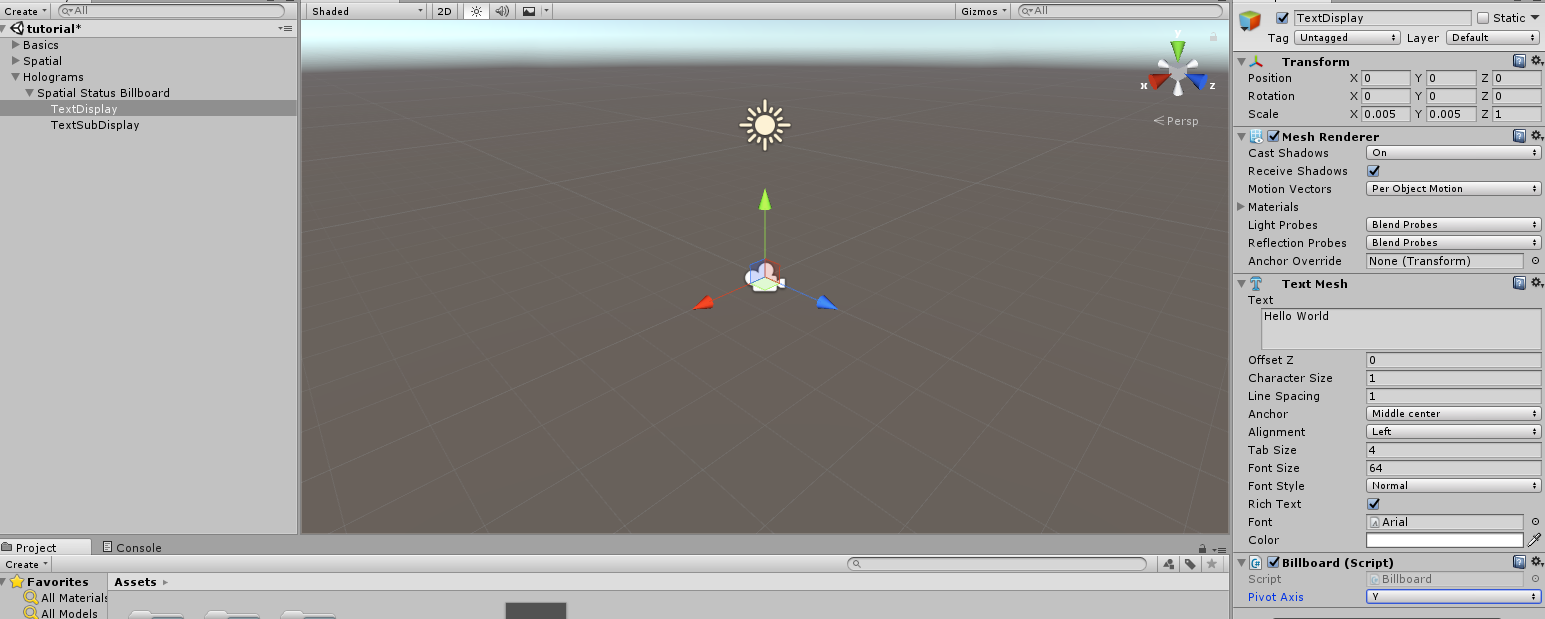 Do the same for the TextSubDisplay GameObject. Press Play. The text both tags along and always faces the user! We now have a good place to display information to the user.
Tutorial Index
[rps-include post=186]
Do the same for the TextSubDisplay GameObject. Press Play. The text both tags along and always faces the user! We now have a good place to display information to the user.
Tutorial Index
[rps-include post=186]Originally published December 14, 2016. Preserved from the legacy CameronVetter.com archive.